

Evernote is one of the most popular tools for note-taking, organizing, and task management. Whether you’re a student, a professional, or someone who loves to stay organized, Evernote is a reliable companion. But before you can start jotting down ideas or planning your day, you need to know how to log in. In this guide, we’ll walk you through everything you need about Evernote login—how to access your account, troubleshoot common issues, and secure your credentials for a smooth experience.
Why Is Your Evernote Login Important?
Your Evernote login is the gateway to all your notes, tasks, and projects. It’s the key to accessing your saved information on any device, whether on a computer, tablet, or smartphone. With one account, you can sync your notes across devices, ensuring you never lose important data.
Logging into Evernote is simple, but understanding the process can help you avoid common mistakes and save time. Let’s dive into the step-by-step instructions.
How to Log in to Evernote
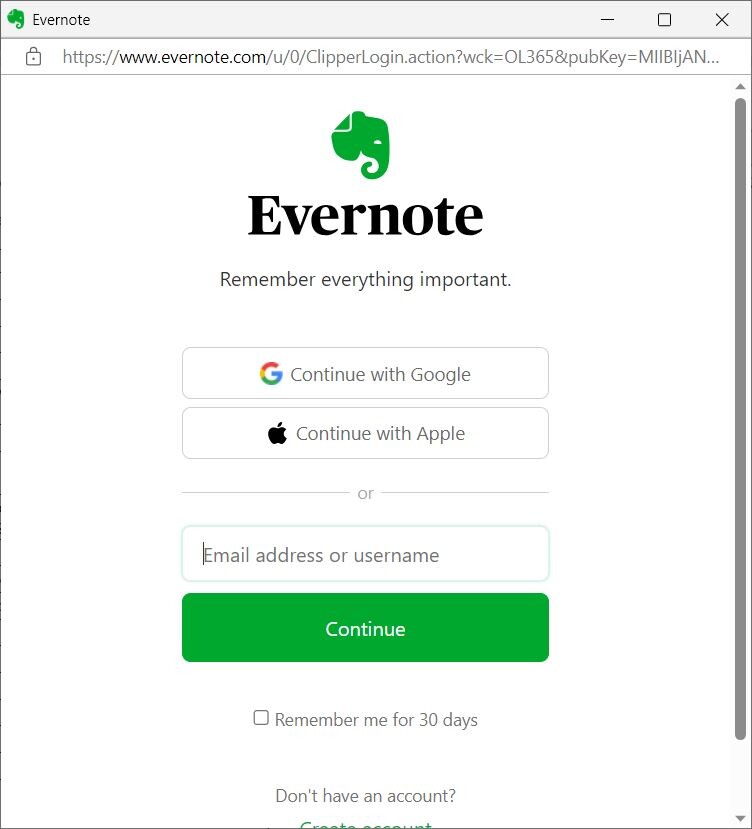
Logging into Evernote is straightforward. Here’s a quick guide to help you access your account with ease:
- Visit the Evernote Website or App:
- Open your preferred browser, go to Evernote’s official website, or launch the app on your mobile device.
- Click on “Log In”:
- The “Log In” button is in the top-right corner of the home page or app interface. Click or tap it to proceed.
- Enter Your Email or Username:
- Type in the email address or username you used to create your Evernote account. Make sure there are no typos.
- Input Your Password:
- Enter your password carefully. If you forget it, don’t worry—there’s an option to reset it (we’ll cover that below).
- Click “Sign In”:
- Once you’ve entered your credentials, press “Sign In.” You’ll be redirected to your Evernote dashboard.
- Enable Two-Factor Authentication (Optional):
- For added security, consider enabling two-factor authentication. You must enter a verification code sent to your phone or email whenever you log in.

Common Evernote Login Issues and How to Fix Them
Occasionally, you face challenges when trying to log in. Here’s how to troubleshoot some common problems:
1. Forgotten Password
- Go to the Evernote login page.
- Click on “Forgot Password?”
- Enter your registered email address and follow the instructions to reset your password.
2. Incorrect Email or Username
- Double-check your email or username for typos.
- Ensure you’re using the email address associated with your Evernote account.
3. Account Locked
- If you enter the wrong password multiple times, your account may temporarily lock. Wait a few minutes before trying again.
- Contact Evernote support if the issue persists.
4. App Not Syncing
- Make sure your device is connected to the internet.
- Log out and log back in to refresh the sync process.
Tips to Secure Your Evernote Login
Keeping your Evernote account secure is crucial, especially when storing sensitive information. Here are some tips to protect your login credentials:
- Use a Strong Password:
- Create a unique password with a mix of letters, numbers, and symbols. Avoid using common phrases or easily guessed words.
- Enable Two-Factor Authentication:
- Add an extra layer of security by enabling two-factor authentication. This ensures that even if someone gets your password, they can’t access your account without the verification code.
- Avoid Public Wi-Fi:
- When logging into Evernote, avoid using unsecured public Wi-Fi networks that could expose your credentials.
- Log Out After Use:
- If you’re using a shared or public device, always log out of your Evernote account after your session.
- Update Your Password Regularly:
- Change your password periodically to reduce the risk of unauthorized access.
Benefits of Logging into Evernote
Why is it worth taking the time to ensure your Evernote login is secure and functional? Here are some of the benefits you’ll enjoy once you’re logged in:
- Access Anywhere: Your notes are synced across all your devices, allowing you to work seamlessly from your computer, phone, or tablet.
- Organized Workflow: Create notebooks, tags, and to-do lists to keep your projects on track.
- Collaboration: Share notes and collaborate with colleagues or friends in real-time.
- Offline Access: Download your notes for offline access when traveling or in areas with limited internet connectivity.
- Search Functionality: Quickly find specific notes using keywords or tags.
Evernote Login on Multiple Devices
Evernote is designed to work on various devices. Here’s how to log in, depending on the platform you’re using:
1. Desktop (Windows/Mac):
- Download the Evernote desktop app or visit the website.
- Enter your email and password, then click “Sign In.”
- Enjoy complete functionality, including advanced editing tools.
2. Mobile (iOS/Android):
- Download the Evernote app from the App Store (iOS) or Google Play Store (Android).
- Open the app, enter your credentials, and tap “Log In.”
- Access your notes on the go.
3. Web Browser:
- Go to Evernote’s website.
- Log in using your email and password.
- Use the web version for quick access without installing any software.
FAQs About Evernote Login
Q: Can I log in to Evernote without an internet connection?
A: You can access notes offline if you’ve downloaded them beforehand. However, you’ll need an internet connection to sync changes across devices.
Q: What should I do if I can’t remember my email address?
A: Try all possible email addresses you may have used. If you still can’t log in, contact Evernote’s support team for assistance.
Q: Is saving my Evernote login details in my browser safe?
A: While convenient, saving login details in your browser can be risky if someone else uses your device. Use a password manager instead.
Final Thoughts
Your Evernote login is the first step toward staying organized and productive. By following the steps outlined in this guide, you’ll ensure a seamless login experience every time. Remember to secure your account with a strong password and two-factor authentication, and always log out when using shared devices.
Evernote is a powerful tool; accessing it shouldn’t be a hassle. With the tips and solutions above, you can log in and get back to what matters—taking notes, planning your projects, and achieving your goals.